
Swipe
Set Up TNL Swipe (Swipe Discovery Tool)
Overview
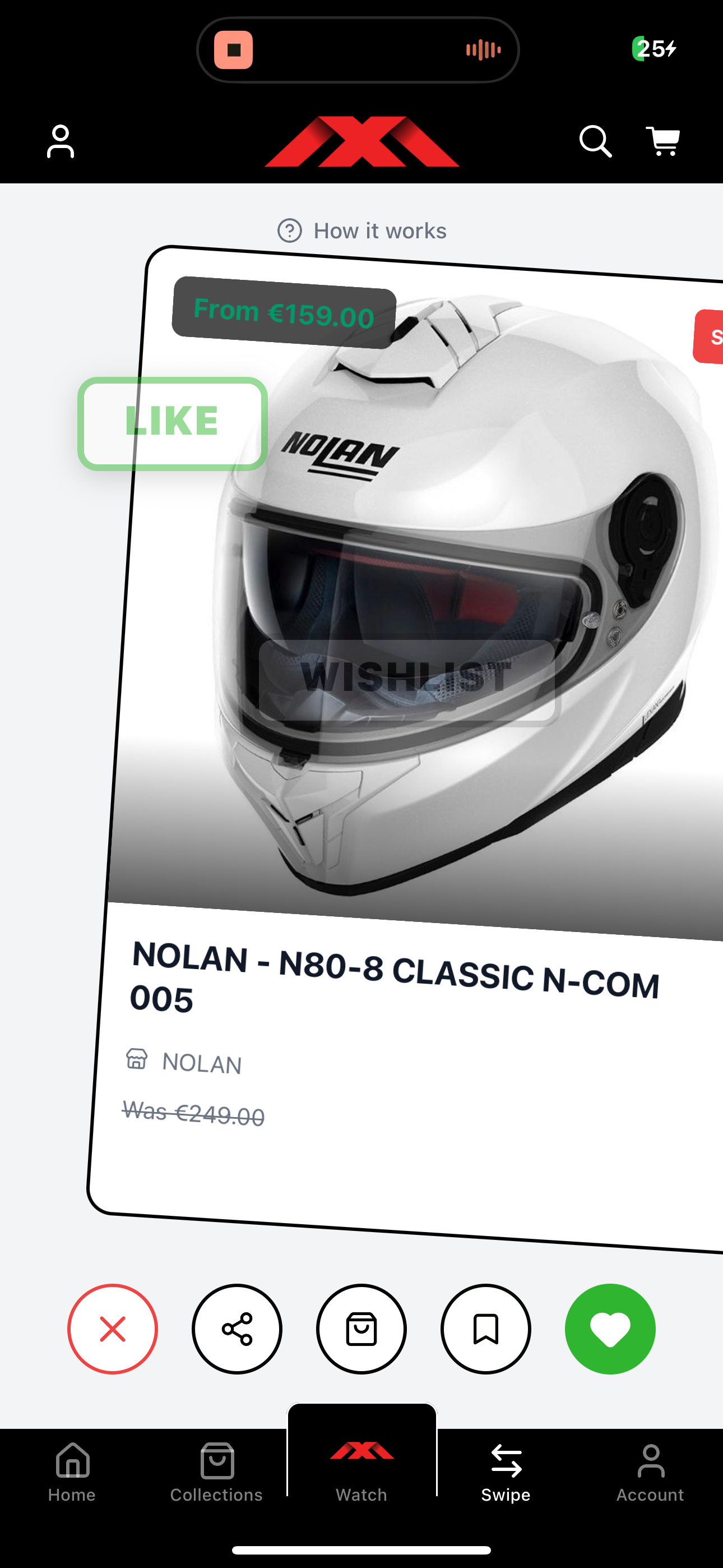
The TNL Swipe feature gives users a Tinder-style shopping experience.
Users can:
- Like products
- Dislike products
- Add items to wishlist
- Purchase directly
- Share products
As users interact, Dave (AI agent) continuously learns their preferences to improve personalization.
This feature is especially powerful for brands with large product catalogs.
Access Swipe Settings
- Go to Marketing Menu
- Select Swipe Settings
Enable Swipe
Under General Settings:
- Toggle Enable Swipe Discovery Tool to activate it in your app.
You can also configure:
- Auto-add likes to wishlist
- Show product price
- Show product vendor
- Show product tags
Customize Action Buttons
You have full control over the bottom action buttons, including:
- Like button
- Dislike button
- Wishlist button
- Share button
- Buy button
For each button, you can:
- Toggle on/off
- Change button color
- Change icon
- Adjust styling
Configure Instructions Overlay
At the top of the Swipe screen, users see a “How It Works” overlay.
You can choose to:
- Show on first launch only
- Show every time
- Customize instructional text and descriptions
This ensures users understand how to use the feature.
Customize Screen Appearance
You can fully customize the Swipe interface, including:
- Background color
- Background images
- Text colors
- Gradient overlay
- Sale/Tag “pills” styling
- Image framing (advanced settings)
This allows Swipe to match your brand’s look and feel.
Algorithm Weights
You can influence how products are surfaced by adjusting weights for:
- Personalization
- Trending products
- New arrivals
- Random discovery
These settings control how products are prioritized in the Swipe feed.
Filters and Limits
You can add restrictions or safeguards such as:
- Minimum and maximum price range
- Daily swipe limits
- Exclude specific:
- Collections
- Product types
- Vendors
- Tags
This ensures only relevant products appear in Swipe.
Best Practices
- Enable auto-add to wishlist for smoother user flow.
- Highlight new arrivals or trending products strategically.
- Exclude irrelevant product categories.
- Use gradients and overlays for better product visibility.
- Test filters before activating.
TNL Swipe combines engagement with AI-driven personalization to help users discover products they love — faster and more intuitively.
Updated 3 months ago