
Create and Edit Pages
Create and Edit Pages in TNL Studio
Overview
Pages are one of the first things you'll create when building your app — such as a Home page, product pages, or custom content pages.
This guide walks you through creating a new page, adding content with the drag-and-drop editor, and publishing your page.
Create a New Page
1. Access Pages
- Log into TNL Studio.
- From the left menu, select Mobile Menu.
- Click Pages.
- Select New Page.
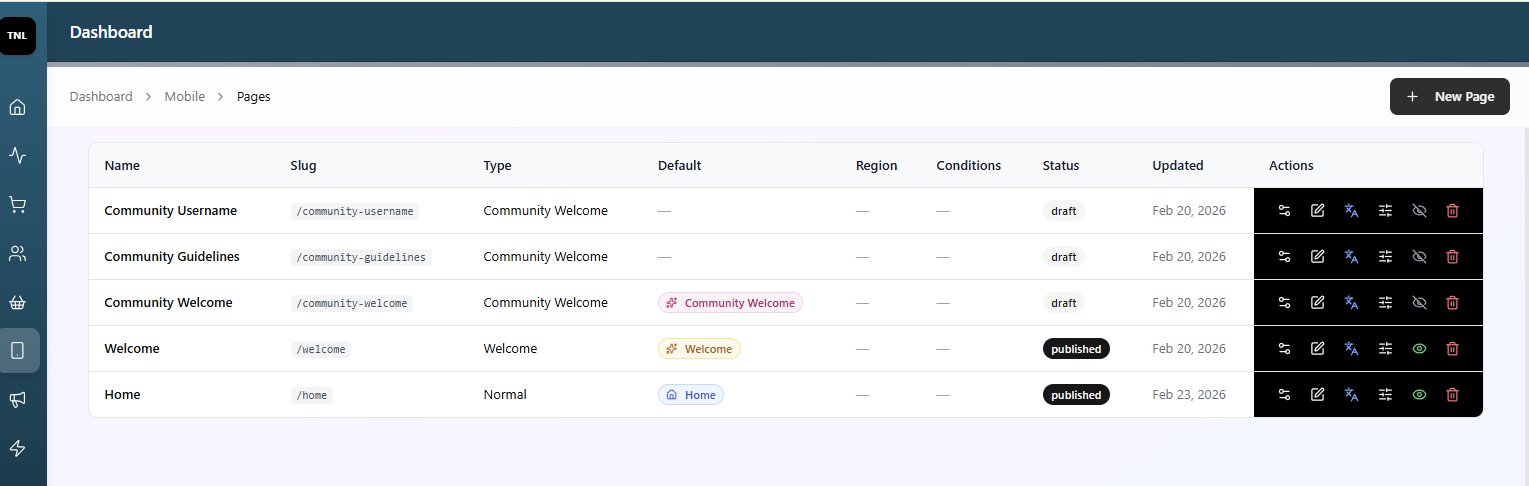
2. Name Your Page
- Enter a name for your page.
- Choose a Page Type.
Available page types include:
- Normal Page (commonly used for Home pages)
- Welcome Page (intro screens shown on first app open)
- Community Welcome Page
- Product Template
- Collection Template
- Account Page
You can also choose Copy from Existing Page to duplicate a layout you've already created.
Click Create Page to open the drag-and-drop editor.
Build Your Page with Blocks
Once inside the editor:
- The left panel contains available block types.
- The center area displays your page layout.
- The right panel controls content and styling for the selected block.
1. Add a Block
Available block types include:
- Product blocks
- Collection lists
- Image blocks
- Video blocks
- Carousels
- Review blocks
- And more
To add a block:
- Drag a block from the left panel.
- Drop it into the page layout.
You can reorder blocks anytime using drag-and-drop.
2. Add Media
Inside a block, you can:
- Upload an image
- Add media from a URL (not recommended, as links may change)
- Select from the Video Library
3. Edit Content
You can customize:
- Title text
- Description text
- Button text
- Font selection
- Text alignment
- Vertical alignment
4. Add Button Links
Buttons can link to:
- Community pages
- Custom pages
- Product collections
- Other areas within your app
5. Customize Block Design
Each block offers advanced design controls, including:
- Overlay settings
- Gradients (including multi-color gradients)
- Text color
- Color palette selection
- Image height
- Padding (top, bottom, and internal spacing)
You can select from your existing app color palette.
Save and Publish
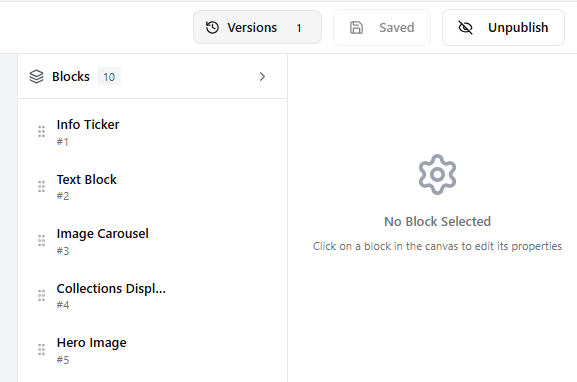
Save Changes
- Click Save Changes once you're happy with the block content.
Publish the Page
- Click Publish when your layout is complete.
A page cannot be linked in navigation or from other pages until it is published.
Use Page Versions
You can save multiple versions of a page layout.
This allows you to:
- Experiment with new designs
- Revert back to a previous version
- Maintain backups of layouts you like
Page versions are accessible within the page editor.
Your page is now ready to be styled, linked, and shared inside your app.
Updated 3 months ago