
Collections Page
Set Up and Manage Collections
Overview
The Collections Page is one of the most important pages in any shopping app. In TNL Studio, you can build and organize your collection hierarchy using drag-and-drop tools, customize display settings, and manage region-specific versions.
This guide walks you through setting up and organizing your collections.
Access Collections
- Go to Mobile Menu
- Select Collections
At the top, you’ll see a Region Selector.
If your app supports multiple regions:
- You can create unique collection structures per region
- Or copy a global structure across regions
Collections Sync with Shopify
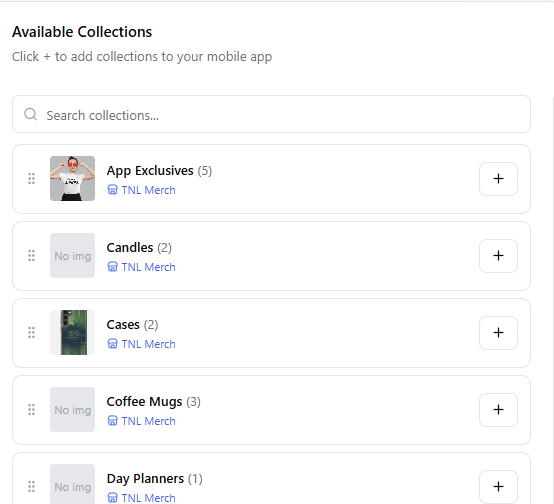
- All collections are synced automatically from Shopify in the Available Collections column.
- Any new collections added in Shopify will appear here.
- Each collection displays:
- Product count
- Store source (helpful if using multiple Shopify stores)
This helps ensure you select the correct collection when building your hierarchy.
Add Collections to Navigation
To add a collection:
- Drag a collection from the left column
- Drop it into your collection hierarchy
- Reposition using drag-and-drop
The mobile preview panel on the right updates in real time so you can see how it will appear in the app.
Customize a Collection
Click on a collection in your hierarchy to access override settings.
You can override:
- Collection name
- Description
- Image
- Display alignment (right, center, etc.)
- Visibility (show or hide)
Image Settings
- Upload from your image library
- Upload a new image
- Avoid using URL images (links may change)
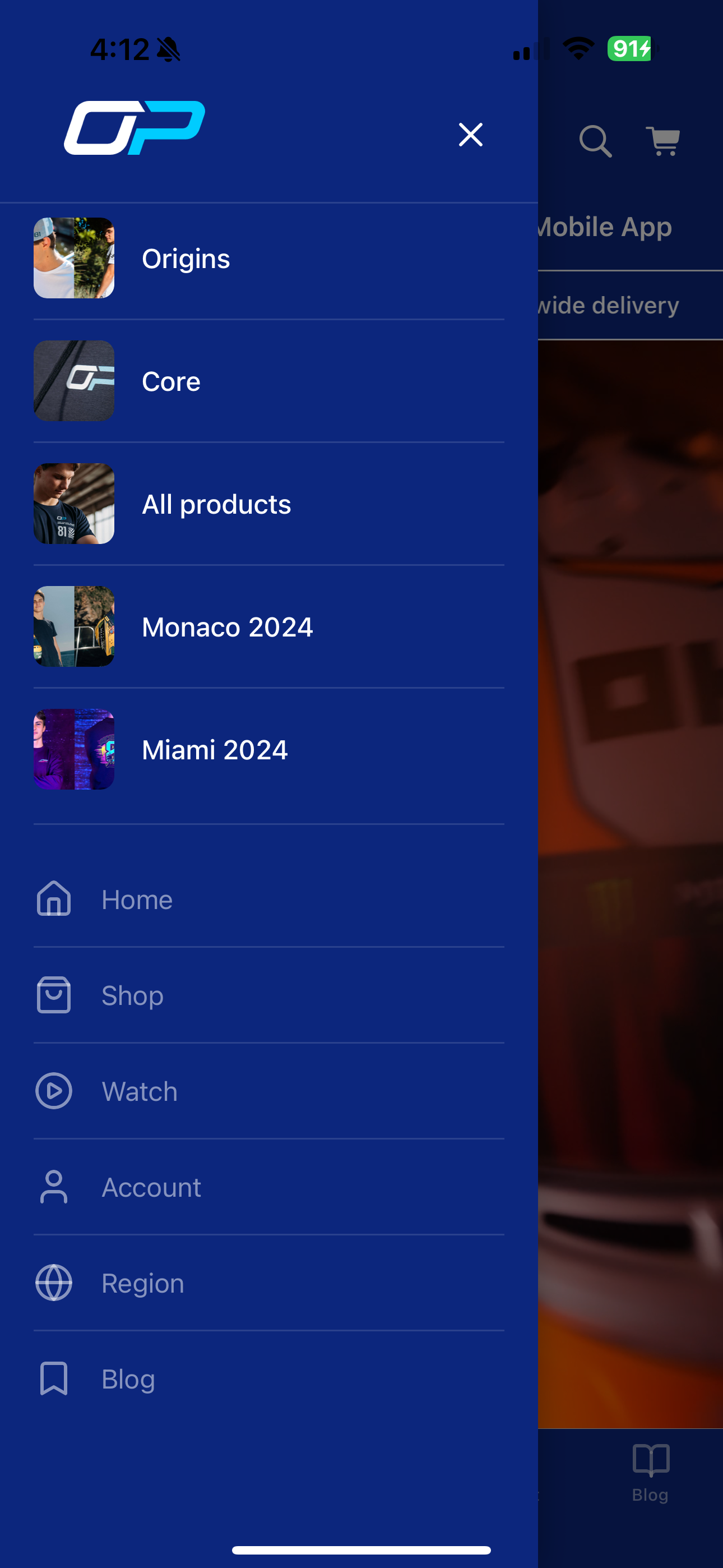
Show Collections in Burger Menu
If using Burger Menu navigation (instead of fixed tabs):
- You can choose to display specific collections directly in the burger menu
- This is useful for highlighting priority collections
Create Subcollections
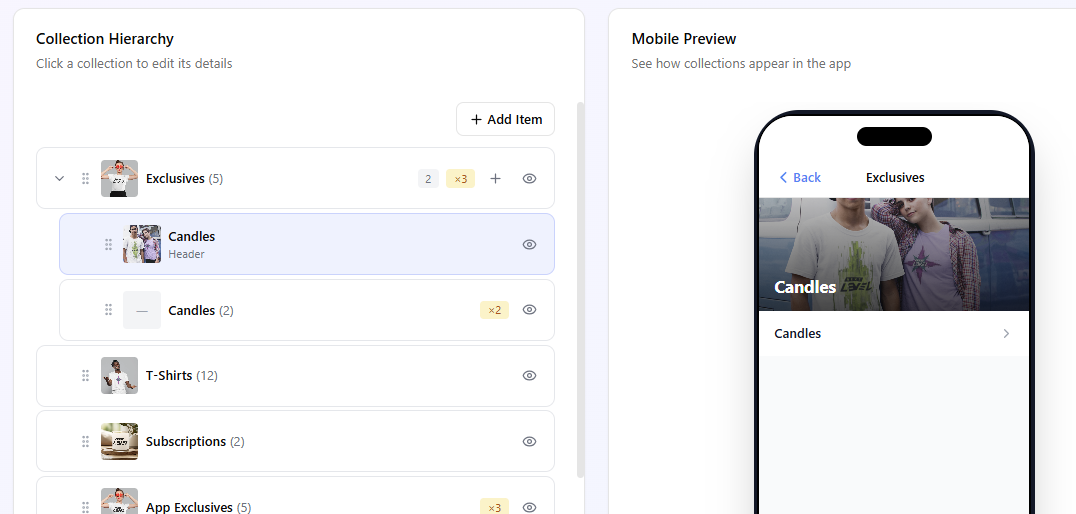
To create a subcollection:
- Drag a collection
- Drop it under a parent collection
Example:
- Drag “Candles” under “Exclusives”
- “Candles” becomes a subcategory
You can preview changes instantly in the right-hand preview panel.
Add Headers for Organization
To improve structure:
- Add a Header
- Customize:
- Title
- Background color
- Text color
- Image (optional)
Headers help organize large collection menus and improve navigation clarity.
Duplicate Collections
You can use the same collection in multiple places.
- Drag and drop into another parent category
- An indicator shows how many times a collection is used in navigation
Updated 3 months ago