
Regions and Languages
Set Up Markets and Languages
Overview
If you want your app available in multiple regions or languages, you can configure Markets and Languages inside TNL Studio.
This guide covers:
- Enabling a region picker
- Adding and organizing markets
- Enabling multiple languages
- Editing translations
Configure Markets (Regions)
1. Open Market Settings
- Go to Mobile Menu
- Select Markets
2. Enable the Region Picker
- Toggle Region Picker on
This allows users to select their region inside the app.
Make sure the Region Picker is added to your navigation (either in the Account Menu or Main Navigation).
3. Customize the Region Selector
You can control how the selector appears:
- Show currency
- Enable search (recommended if you offer many regions)
- Show flags
- Show dividers
- Set a default market
4. Add Available Regions
The left column displays regions pulled from Shopify:
- Multiple connected stores will display all associated regions
- Stores with multiple markets will display all configured markets
To add a region to your app:
- Click the + icon next to the region
- The region will appear in your active list
You can:
- Reorder regions
- Add headers or dividers
- Set a default region
Headers and dividers are helpful if you offer many regions.
Configure Languages
If you're offering multiple regions, you may also want to offer multiple languages. TNL Studio will automatically translate all content within your app.
1. Open Language Settings
- Go to Mobile Menu
- Select Languages
2. Enable Languages
- Toggle Enable Languages
- Select a Default Language
3. Add a New Language
- Toggle on the language you want to enable
- Click Enable and Translate
The system will automatically translate your app content.
Once complete, the new language will be available.
If using multiple languages, enable a Language Selector in your navigation.
Preview and Edit Translations
Preview Translations
You can preview translations from the Pages menu using the page actions.
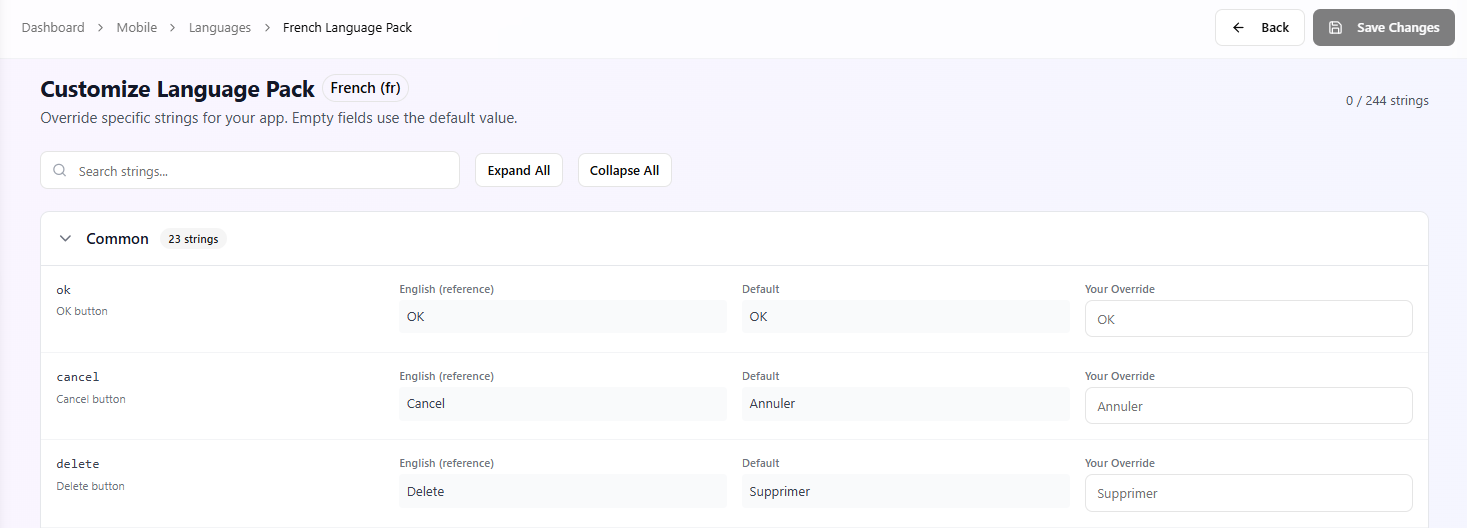
Edit Language Packs
To modify translations:
- Open the Language Pack
- Review:
- Default text (reference column)
- Translation column
- Override any text as needed
- Click Save
Your updates will replace the automatic translation.
Best Practices
- Set a clear default market and language.
- Enable search if offering many regions.
- Always add region and language selectors to navigation.
- Review automatic translations before publishing.
- Use headers/dividers for better organization.
Your app is now ready to support multiple regions and languages.
Updated 3 months ago